
Strasbourg’s academic email service is based on webmail, available at courrier.ac-strasbourg.fr, but access requirements vary depending on the device used and how much control you have over it. A fixed work computer, a personal smartphone, a shared family tablet: each situation calls for different settings and precautions. Comparing these scenarios helps identify the real risks of losing access or having your account compromised.
Webmail, IMAP or an app: comparing ways to access your academic email
There are three ways to check your professional ac-strasbourg email: webmail (via a browser), an IMAP setup in an email client (Outlook, Thunderbird, Mail), or adding the account to a mobile app (Gmail, Outlook for iOS/Android). Each has distinct advantages and drawbacks in terms of convenience, security and compatibility.
| Criterion | Webmail (courrier.ac-strasbourg.fr) | IMAP client (Thunderbird, Outlook) | Mobile app (Gmail, Outlook) |
|---|---|---|---|
| Device required | Any device with a browser | Computer with software installed | Smartphone or tablet |
| Local email storage | None (online access only) | Local copy possible | Temporary cache on the device |
| Risk on a shared device | Low if you log out manually | High (saved credentials) | High (persistent session) |
| Automatic synchronisation | No | Yes (depending on settings) | Yes (push notifications) |
| Offline access | No | Yes (emails already synchronised) | Partial |
Webmail remains the safest option on a device that isn’t yours. It leaves no local copies of messages, and the session ends when you log out. IMAP or mobile app setups are more convenient for everyday use, but they store data on the device, which creates a real problem if it is lost or stolen.
A detailed guide explains how to set up Strasbourg’s academic email service on different devices, including steps specific to iOS and Android devices.
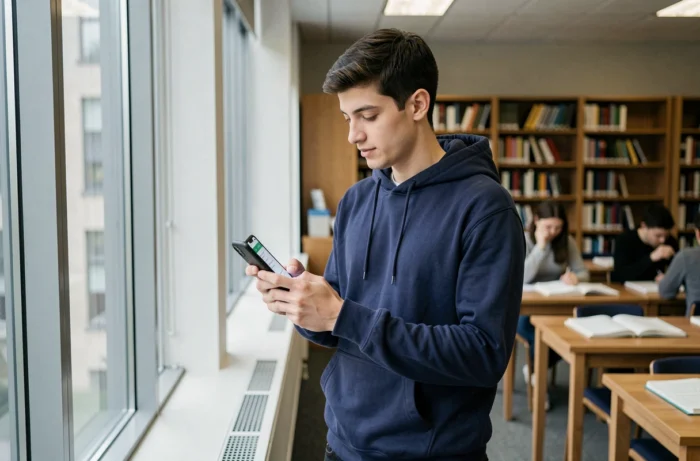
Signing in on a shared personal device: settings that protect your account
Accessing your academic email from a family computer or a tablet used by several people is common. The main risk isn’t technical: it’s forgetting to log out. A partner, child or roommate could then access your work emails, sensitive attachments and communications about assignments or contracts.
Practical precautions before signing in
- Always use your browser’s private browsing mode (Ctrl+Shift+N in Chrome, Ctrl+Shift+P in Firefox): no cookies or credentials are retained after you close the window
- Never tick “Remember me” or “Stay signed in” on the ac-strasbourg webmail login page
- After each session, check that your browser hasn’t offered to save your password (and decline if it has)
- On a shared smartphone, don’t set up the account in the native mail app: use webmail in a browser only
These steps take just a few seconds. They help prevent the most common problem: an academic email account left open on a device that others can access.
How a webmail session differs from a configured IMAP account
When you close a webmail tab, the session expires. When you set up an IMAP account in Thunderbird or Outlook, the password remains saved in the software. Removing the account from the software may not be enough: you also need to delete the saved credentials from your system’s password manager (Keychain on macOS, Credential Manager on Windows).
Strasbourg academic email on a lost or stolen device: what to do
Losing or having a smartphone stolen when the ac-strasbourg account is set up on it puts your work emails at risk. Academic communications regularly contain personal data (NUMEN, assignments, contract details). Acting quickly limits the damage.
What to do in the first few hours
The first step is to change your academic account password from another device. You can change it in your account settings by accessing the courrier.ac-strasbourg.fr webmail. This invalidates the active session on the lost device.
If you can’t change the password (because you’ve forgotten your NUMEN or your access is blocked), contact your institution’s administrative manager or, for AESH staff in Bas-Rhin, email [email protected]. The rectorate can force a password reset.
Lock the device remotely
On Android, Google’s “Find My Device” feature lets you lock or erase your phone remotely. On iOS, Apple’s “Find My” feature offers the same options. Remote erasure removes the configured email account and all associated data.
These features can only be used if they were enabled before the device was lost. Check this setting when you first configure the account on a mobile device.

First sign-in and login details: the most common issues
Most access problems with Strasbourg’s academic email service occur during the first sign-in. The username is generally the first initial followed by the surname (format: pnom). The initial password is the NUMEN, provided when you sign your contract via your personal email address.
Two issues come up regularly. The first is that the NUMEN was never received or was accidentally deleted. To resolve this, contact your administrative manager. The second is that the username doesn’t match the expected format, particularly with compound surnames or special characters. In this case, only the rectorate’s IT department can confirm the exact username assigned to you.
After your first sign-in, webmail will ask you to choose a new password. This password permanently replaces your NUMEN. Saving it in a password manager (Bitwarden, KeePass) rather than on a sticky note or in an unprotected text file is the most reliable way to avoid losing access later.
You can access webmail via courrier.ac-strasbourg.fr in all recent browsers, without installing any software. For staff who use a VPN, it may interfere with the service connection: temporarily disabling it resolves the issue in most cases, according to the rectorate’s support page.